

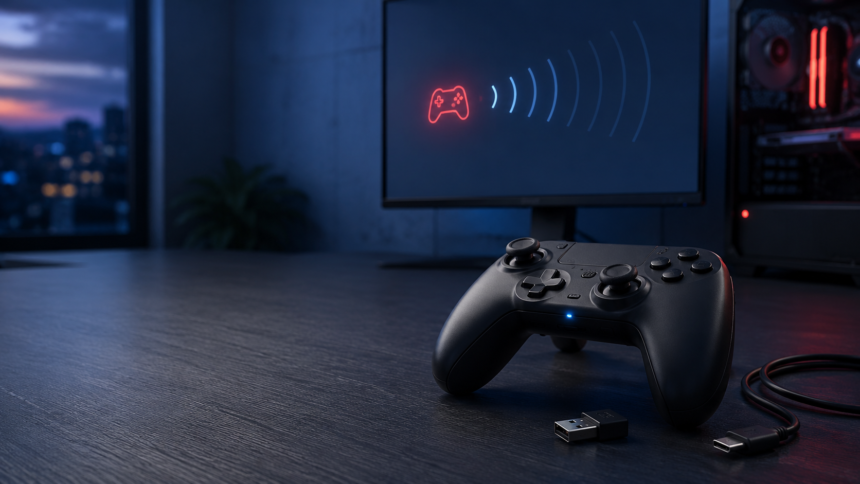
Few things are more frustrating than a controller disconnecting in the middle of a game. HSSGamepad connectivity issues may appear as failed Bluetooth pairing, random dropouts, delayed input, incorrect button mapping, or a controller that connects but does nothing.
The important point is that these symptoms do not always indicate a broken gamepad. Low battery power, an incorrect connection mode, wireless interference, driver problems, and unsupported games can all produce similar behavior.
HSSGamepad instructions and features may vary between models. Before following model-specific button combinations found online, check the model number on the controller, packaging, or original product listing. A Bluetooth-only model, for example, cannot be repaired by troubleshooting a wireless dongle it does not support.
Identify the Problem
Start by separating a connection failure from a game compatibility problem. This prevents you from changing settings that are already working.
| Symptom | Likely cause |
|---|---|
| The controller never appears in Bluetooth settings | Pairing mode, battery, range, or Bluetooth adapter problem |
| It appears but will not connect | Old pairing record or connection to another device |
| It disconnects during play | Weak battery, interference, power saving, or excessive distance |
| Windows does not detect it through USB | Cable, port, hub, driver, or hardware problem |
| It connects but buttons do not respond | Unsupported game or incorrect input mode |
| Buttons are mapped incorrectly | XInput/DirectInput mismatch or game configuration |
| Input feels delayed | Wireless congestion, distance, software load, or connection mode |
If the controller works in system settings but fails in only one game, the physical connection is probably not the main problem. Concentrate on the game’s controller support and input settings instead.
Try the Quick Fixes
Begin with the simple checks before reinstalling drivers or resetting system settings.
- Charge the controller fully. A low battery can prevent pairing or cause an unstable wireless connection.
- Restart the controller and gaming device. This clears many temporary Bluetooth and USB errors.
- Use one connection method at a time. Disconnect the USB cable when testing Bluetooth and remove the wireless receiver when testing a wired connection.
- Turn off Bluetooth on previously paired devices. The gamepad may be reconnecting to a phone, tablet, or computer nearby.
- Move the controller closer. Test it within a few feet of the computer, phone, or receiver.
- Confirm the correct operating mode. Some controllers use separate modes for Android, Windows, iOS, or DirectInput and XInput.
- Test another game. This helps reveal whether the problem belongs to the controller or a particular title.
Do not guess the pairing shortcut. Use the combination printed in the manual because holding the wrong buttons may start the controller in an incompatible input mode.
Repair Bluetooth Pairing
Place the controller in discovery mode according to its manual. Its indicator will normally begin flashing, although the exact light pattern varies by model.
Open the Bluetooth settings on the host device and look for the controller. If an old HSSGamepad entry already exists, remove or forget it before pairing again. Microsoft recommends this remove-and-add process when a Bluetooth device appears in Windows but refuses to connect. Microsoft’s Bluetooth troubleshooting guide also recommends keeping the accessory in pairing mode and close to the computer.
On Android, open Settings > Connected devices, select the option to pair a new device, and choose the controller when it appears. Menu names can differ slightly by phone manufacturer. Google provides the current process in its Android Bluetooth setup guide.
On an iPhone or iPad, put the controller into discovery mode and select it under Settings > Bluetooth. Apple limits its instructions to supported wireless controllers, so confirm that your exact model is compatible with iOS before treating failed pairing as a defect. See Apple’s controller connection guide.
If the controller still does not appear, switch Bluetooth off and back on, restart both devices, and try again with other nearby Bluetooth devices temporarily disconnected.
Stop Random Disconnects
A controller that pairs successfully but drops out later usually has a power, range, or interference problem.
First, play with a full charge. If the problem returns at roughly the same battery level each time, the internal battery may be deteriorating. Compare wireless performance with a wired connection if the controller supports one.
Next, reduce the distance between the gamepad and its receiver. Keep large metal objects, cabinets, and the back of a television from blocking the direct path. A USB receiver hidden behind a desktop computer may perform better when moved to a front port or a short extension cable.
Bluetooth operates in the 2.4 GHz radio band and uses frequency hopping to reduce interference, but congestion can still affect real-world performance. Wi-Fi equipment, wireless headsets, USB receivers, and other Bluetooth accessories may compete in the same area. The Bluetooth SIG specification explains how Bluetooth uses the 2.4 GHz band and frequency hopping to combat interference.
For testing, move the receiver away from the Wi-Fi router, unplug unused wireless dongles, and pause other Bluetooth accessories. If the dropouts stop, reconnect those devices one at a time to identify the conflict.
Windows power-saving features can also interrupt Bluetooth. Microsoft recommends checking Battery Saver and Bluetooth energy settings when devices repeatedly disconnect. Follow the steps in its Windows Bluetooth disconnection guide.
Fix USB Detection
A cable that charges the controller is not necessarily capable of carrying data. Test with a known data-capable USB cable, preferably one that works with another accessory.
Connect the controller directly to the computer instead of using a hub. Try at least one additional USB port, then restart the PC with the controller disconnected and reconnect it after Windows loads.
Microsoft recommends changing the USB port, checking the cable for damage, and bypassing the hub when troubleshooting wired input devices. These steps are covered in its Windows input-device troubleshooting guidance.
If Windows still does not recognize the controller, open Device Manager and inspect Human Interface Devices, Bluetooth, Universal Serial Bus controllers, and Other devices. A warning icon may indicate a missing or damaged driver.
Right-click the affected device and select Update driver. If Windows reports an error code, use Microsoft’s Device Manager error-code reference before removing anything.
Avoid downloading “universal HSSGamepad drivers” from unverified websites. Use Windows Update or files supplied by the seller or documented manufacturer for your exact model.
Check the Wireless Dongle
A 2.4 GHz USB receiver is not the same as Bluetooth. If your model includes a dedicated dongle, the gamepad must be set to its receiver mode rather than Bluetooth mode.
Insert the receiver directly into the host device and wait for the operating system to detect it before turning on the controller. If it fails, try another port and inspect Device Manager.
Some receivers are paired to one specific controller at the factory. A visually similar replacement dongle may not work, even if it fits the USB port. Use only a receiver confirmed to support the exact gamepad model.
Testing the dongle on a second computer is especially helpful. If it fails on both systems while wired mode works, the receiver or its pairing with the controller is the likely cause.
Fix Missing Game Input
When a controller is visible in system settings but does not work inside a game, the connection may already be fine. The game might not support that controller or may be waiting for another input standard.
On Windows, many controllers can operate through XInput or the older DirectInput system. These standards do not expose every feature in the same way. Microsoft notes that DirectInput handling can lose features such as independent trigger readings or vibration in some situations. Its XInput and DirectInput comparison explains the technical differences.
If your HSSGamepad has an XInput/DirectInput switch or documented mode shortcut, try the other mode and restart the game. Do not switch modes while the game is running unless the controller manual specifically allows it.
Steam Input can translate controller actions into inputs a game understands. According to Valve’s Steam Input documentation, it can use gamepad emulation or mouse-and-keyboard emulation for controller-supported games. Check Steam > Settings > Controller to see whether the gamepad is detected and whether Steam Input is enabled for the title.
Android itself supports a wide range of game controllers, but each game still needs to process controller events correctly. Google’s Android game-controller documentation confirms that support is implemented through the game or its engine. A controller working in one Android game and not another therefore points to game-level compatibility rather than failed Bluetooth.
Reduce Input Lag
Input lag has several possible sources: wireless congestion, distance, low battery, an overloaded host device, the game’s frame rate, or the controller’s own hardware.
Use a wired connection as a diagnostic baseline. If wired input feels responsive but Bluetooth does not, focus on wireless range and interference. If both modes lag, test another game and close controller-mapping programs, overlays, recording tools, and unnecessary background applications.
Keep only one remapping utility active. Running Steam Input alongside another controller emulator can create double inputs, missed commands, or incorrect button assignments.
A 2.4 GHz dongle may provide a steadier connection than Bluetooth on some models, but this is not guaranteed. The best option is the one that remains stable in your actual setup.
Update Software Safely
Install pending operating-system updates and obtain current Bluetooth, USB, and chipset drivers from Windows Update or the computer manufacturer.
Microsoft provides instructions for updating a Bluetooth adapter through Device Manager in its official driver guide.
Controller firmware should be updated only when you can identify the exact model and a legitimate support source. Firmware intended for another controller revision can leave the device unusable. If no verified firmware is available, do not install files promoted by unrelated download sites.
Test for Hardware Failure
Testing on another compatible device is the fastest way to separate a controller fault from a host-system problem.
Pair or connect the gamepad to a second phone or computer. Use a different cable and, where supported, compare Bluetooth, dongle, and wired modes.
If the controller fails everywhere, inspect the charging port, cable socket, power button, and receiver for physical damage. A loose port, swollen battery, liquid exposure, or controller that becomes unusually hot should not be ignored.
If it works reliably on another device, return to the original system and investigate drivers, power settings, wireless congestion, or game compatibility.
Prevent Future Problems
A few habits can reduce recurring HSSGamepad connectivity issues:
- Charge the controller before long sessions.
- Store the wireless receiver with the gamepad.
- Avoid bending or straining the USB connector.
- Remove old Bluetooth pairings when changing devices.
- Keep the receiver away from routers and dense groups of USB devices.
- Use one controller-mapping application at a time.
- Record the model number and original pairing instructions.
- Install firmware only from a verified source.
These steps also make future troubleshooting faster because you will know which connection modes and settings previously worked.
Final Thoughts
Most connectivity issues HSSGamepad users encounter can be traced to a small group of causes: an incomplete charge, an old Bluetooth record, the wrong controller mode, wireless interference, a faulty USB path, or missing game support.
Begin with a full charge and fresh pairing. Then test the controller through a direct USB connection and in another game or device. This simple process separates wireless trouble, software compatibility, and hardware failure without unnecessary driver downloads or risky firmware changes.
Frequently Asked Questions
Why is my HSSGamepad not appearing in Bluetooth settings?
The controller may not be in discovery mode, may have insufficient battery power, or may still be connected to another device. Charge it, disable Bluetooth on previously paired devices, and use the pairing procedure specified for your model.
Why does my HSSGamepad connect but not work in a game?
The game may not support controllers, or it may expect XInput while the gamepad is using DirectInput. Check the game’s controller settings, try the documented input-mode switch, and test whether Steam Input can recognize the controller.
Why does the controller keep disconnecting?
Common causes include low battery power, excessive distance, radio interference, Windows power saving, an unstable USB hub, or a damaged cable. Test close to the host with a full charge and no hub.
How do I reset an HSSGamepad connection?
Remove the gamepad from the host device’s Bluetooth list, restart both devices, and pair them again. Use a physical reset button only if one is documented for your exact model.
Can an HSSGamepad work without its USB dongle?
Only if that model also supports Bluetooth or wired USB data. A controller designed exclusively for a paired 2.4 GHz receiver may not work wirelessly without its original dongle.
Why are my HSSGamepad buttons mapped incorrectly?
The controller may be in the wrong input or platform mode. Switching between documented XInput and DirectInput modes often corrects button and trigger behavior on Windows. In-game remapping may still be required.
Does HSSGamepad work with Android and iPhone?
Compatibility depends on the exact controller model and the game. Android supports many standard game controllers, while Apple devices require a supported wireless controller. Successful Bluetooth pairing does not automatically mean every game will accept the inputs.
How can I tell if the controller is broken?
Test it with another data cable, another USB port, and a second compatible device. If it fails across multiple devices and connection methods, the controller, battery, port, or wireless receiver may have a hardware fault.
Read also LCFTechMods: What Gamers Need to Know